The pictures and screen images are of TeleAuto version 2.7.Future evolution of
the program makes likely to change interface designs to add new functions: Don't be
surprised. You have been warned !
Certain CCD imaging sensors have unusual pixels with generate great quantities
of “thermal noise” electrons. A thermal image taken with the camera shows the white
points called “hot pixels” at each position of these pixels.
The Kodak KAF400 and KAF1600 are particulalry susceptible to this problem.
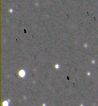
If you pre-process such images these artifacts can appear at the positions of the
hot pixels as dimmer points :
To avoid these un-aesthetic stains, it is possible to correct these hot pixels
during the pre-processing of raw images corrected with calibration images, just before
printing. The correction consists of replacing the hot pixels with the mean of the
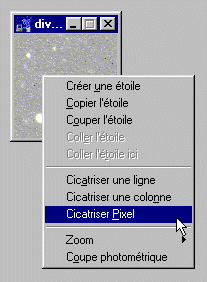
neighbouring pixels. You can do this manually by right clicking the mouse on the image
before processing then clicking on the pop-upmenu “ Cicatriser Pixel “ :
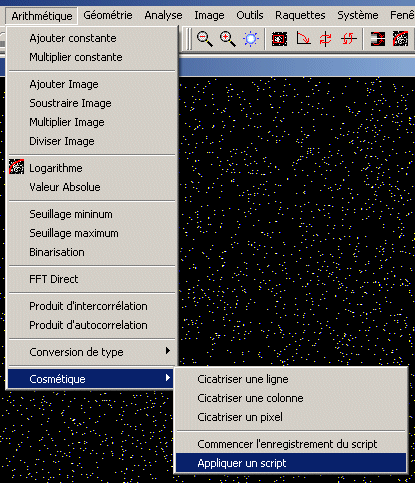
You can also access this function from the menu Arithmétique/Cosmétiques/Cicatriser Pixel.
With images containing many thousands of such pixels, this picky operation can be
very laborious unless automated with TeleAuto !
TeleAuto is capable of correcting these pixels with its preprocessing functions by creating
a file which maps the cosmetic blemishes and can then be applied to all the image pixels at once.
To create the processing file or script a special function has been created. Its function
is very simple: Map the postion of each hot pixel which is “hotter” or has a higher
“brightness” than some given value. To get this mapping, just follow this procedure:
Take a dark frame
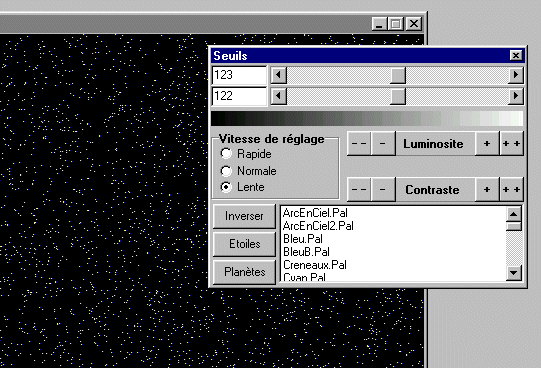
With the threshold regulating window adjust the visible threshold. Fiddle with the
luminosity command to just NOTshow the brightest pixels. Note the threshold value for later on :
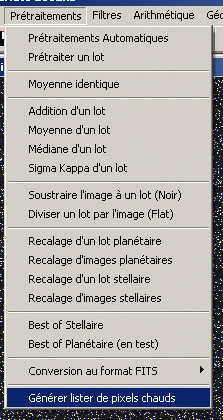
Select the Prétraitements/Générer liste de pixels chauds menu item :
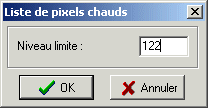
The following dialog window will appear. Enter the intensity value noted previously in
the threshold adjustment window, for example 124 and click the OK button.
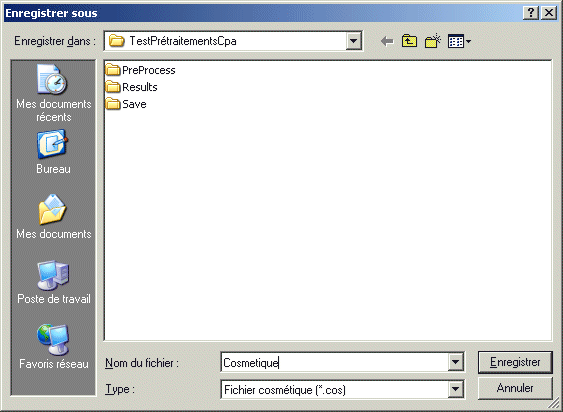
Now a windows file dialog will appear. Enter a name for the file to hold the list of hot
points and click the Enregistrer button :
Note that the file must be saved in the same directory that your preprocessed images are
stored in, so that you can use the correct pre-processor files for the correct images.
TeleAuto automatically adds the extension .cos to the end of the name of the file if you
haven't done it yourself.
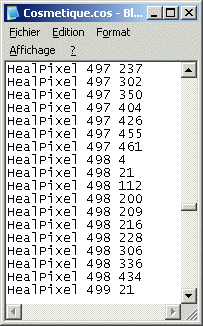
The file format is very general, and simple, you can open it in notepad to see if you like.
It contains a line per pixel with the instruction “Heal Pixel” (Cicatrise) followed by the
co-ordinates of the pixel to be “healed” within the image frame.
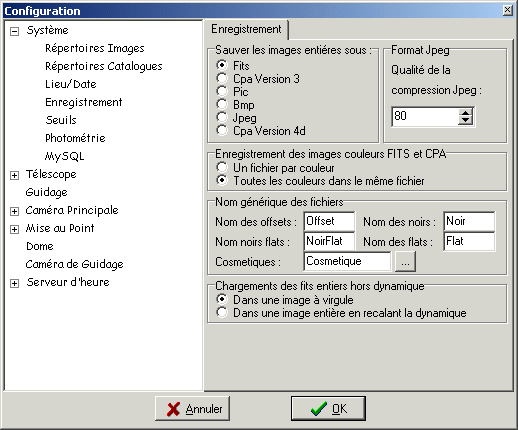
TeleAuto suggests a default filename for the preprocessing function.
Make sure you enter the same name is the configuration window in the Enregistrement tab ! :
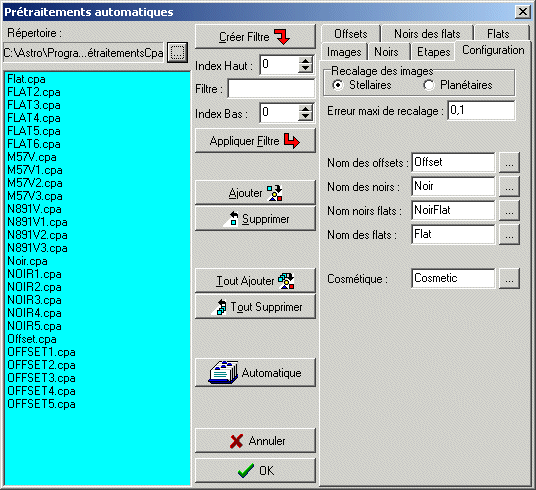
You can retrieve all the pre-processing file names automatically from the tab Configuration
under the preprocessing dialog :
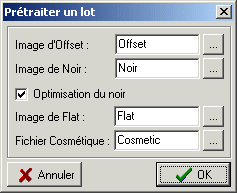
And in the window of the Prétraitements/Prétraiter un lot window :
you can also correct your images directly by calling the function
Arithmétique/Cosmétique/Appliquer un script :